Landlord and Tenant Board
Location Reports
Disclaimer and Instructions
Disclaimer for Reports
- Note that LTB data is updated quarterly and may change as individual files are revised. As a result, some information in this report may become outdated after publication.
- Most LTB applications are submitted online by applicants. There is a possibility that some fields may contain incomplete or inaccurate information.
Filter Instructions
Step-by-Step: How to Use Filters on Excel
Step 1: Double-click the link to open the file.
Step 2: Go to the Home tab or Data tab.
Step 3: Click on the “Sort & Filter” icon and select “Filter.” Small drop-down arrows will appear in each column header.
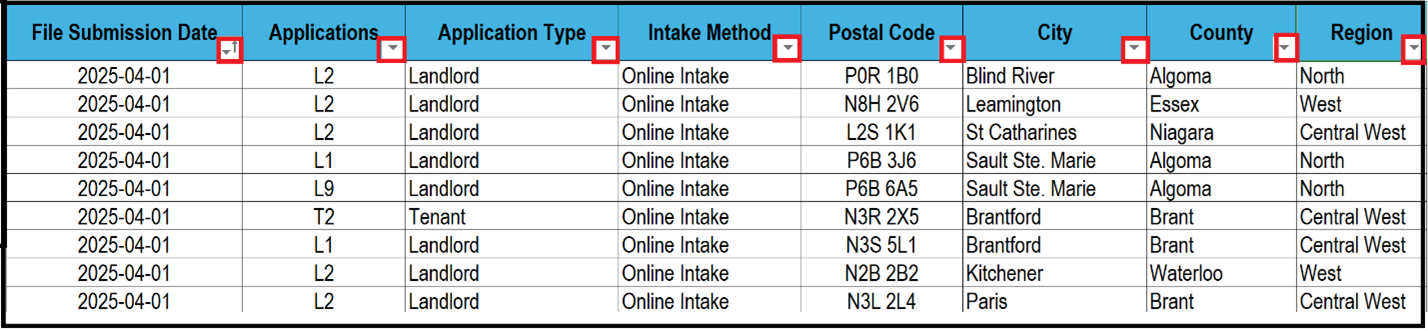
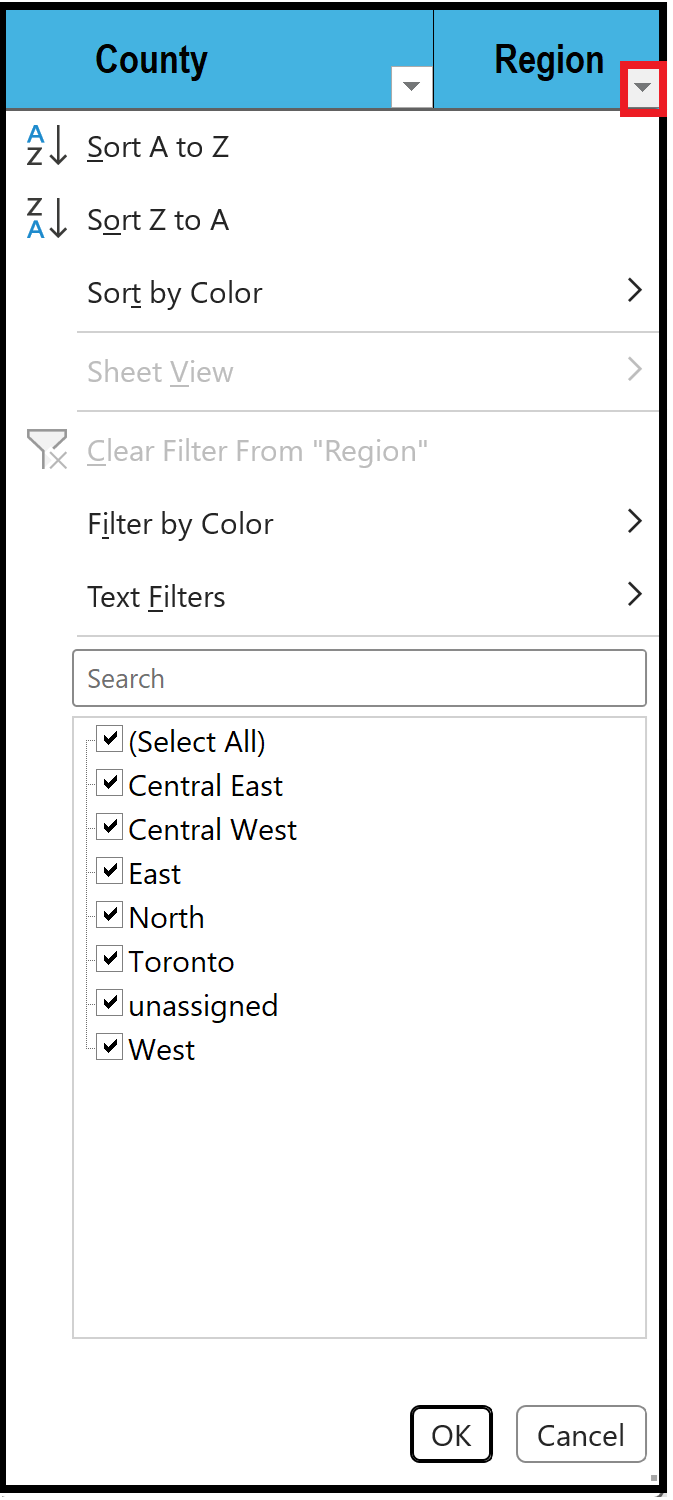
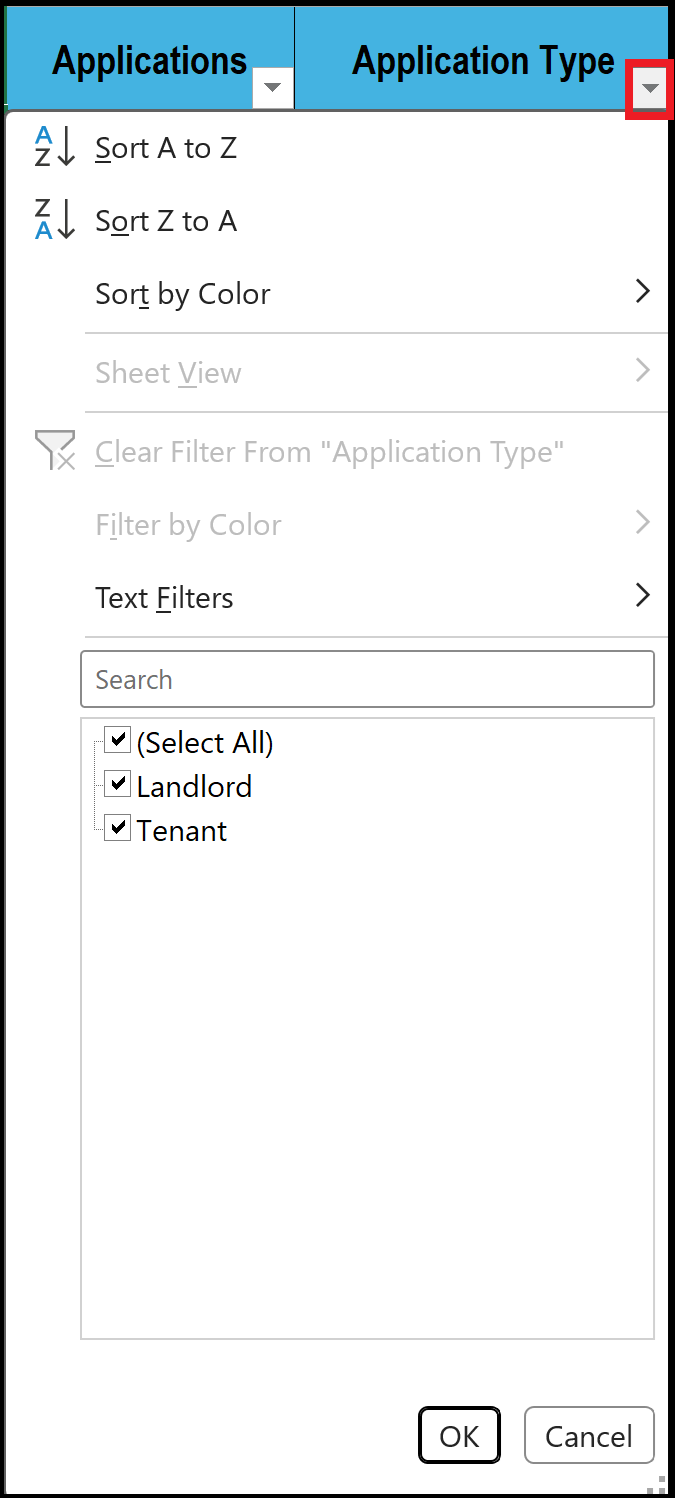
Step 4: Click the drop-down arrow in the column you want to filter. Several options to filter the data will appear, including:
- Check boxes to select/deselect specific values (e.g., only show “Tenant” applications)
- Sort (A-Z or Z-A)
- A search tool to find specific values
- Number filters, text filters, or date filters, depending on the column type
Example Filters You Can Try
- Filter by “Region” to see applications from a specific area (e.g., “Toronto”).
- Sort by “File Submission Date” to view the most recently filed applications first.
- "Filter the column for 'Notice Type (e.g., N5)' by Yes to view only the applications that involve that notice type."